MCP connections
Connect the SERP Lens agent to tools from a local command or remote MCP server.
MCP connections add tools to the AI panel. Only add a server whose command, URL, and requested access you trust.
To go the other way and use SERP Lens tools from Codex, Claude Code, or Cursor, see the SERP Lens MCP server.
Add a local command
- Open the AI panel's customization view, then open Connections.
- Choose Add connection and Local command.
- Enter a name, command, and arguments.
- Add only the environment variables and working directory the server needs.
- Save the connection, then review the discovered tools.
The local server runs as a program on your computer. It receives a safe set of system environment variables, your login-shell PATH, and any variables you add. It uses the working directory you configure, or your home directory by default. SERP Lens does not pass every variable from the desktop app to the server.
Add a remote server
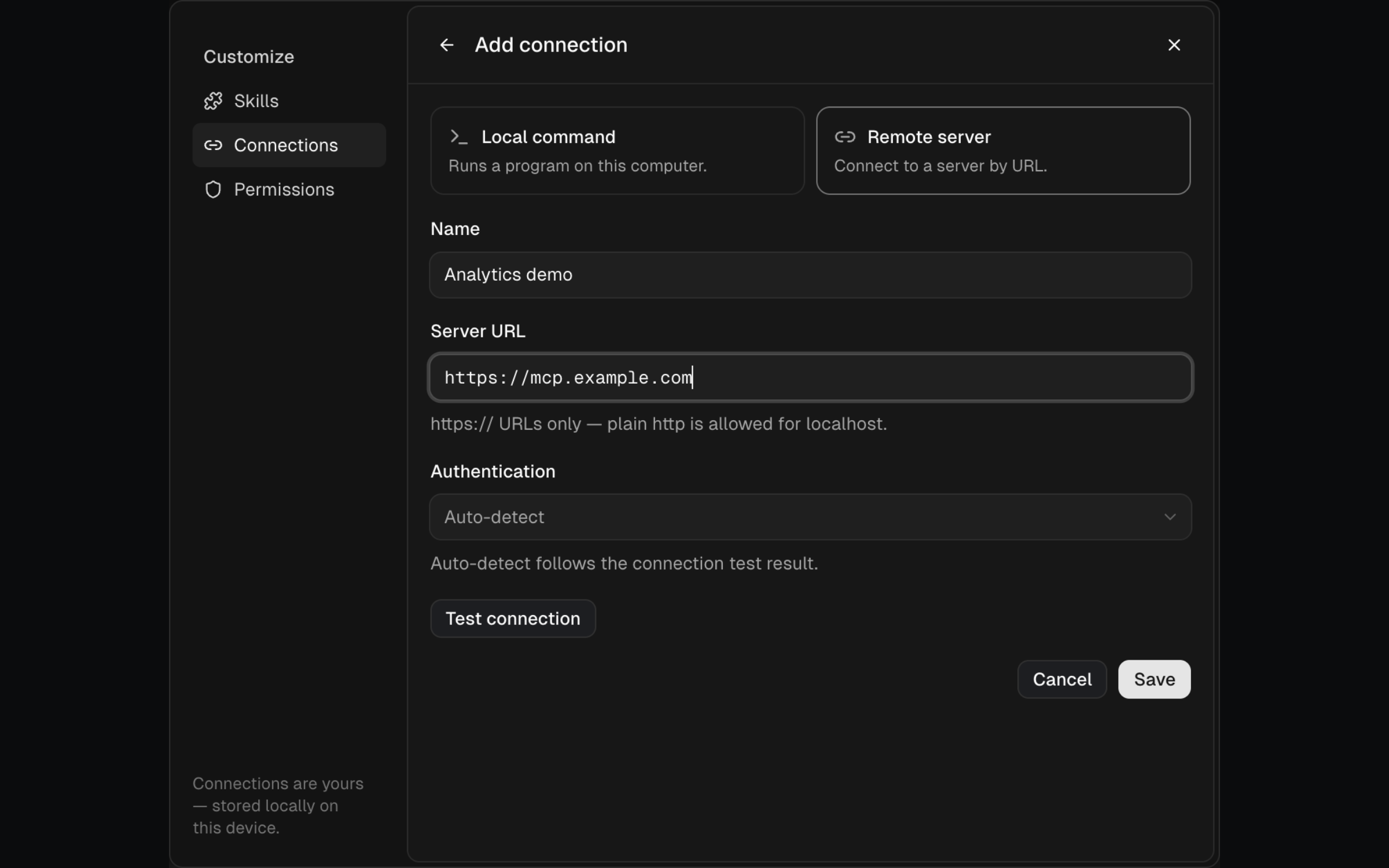
- Choose Remote server.
- Enter an
https://MCP endpoint. Plain HTTP is accepted only for localhost. - Test the connection so SERP Lens can detect the authentication requirement.
- Choose API key or OAuth when required, then complete authentication.
- Save the connection and review its tools.
API keys for remote MCP servers are stored in the system keychain on the current device. They are connection credentials for that MCP server and are not shared with a team.
Control the connection
Open a saved connection to enable or disable it, update its configuration, reconnect authentication, inspect discovered tools, or remove it.
Each tool can use 1 of 3 policies:
- Always allow — run the tool without an approval card.
- Ask first — require approval before each run.
- Never allow — prevent the agent from running the tool.
Start with Ask first until you understand the tool inputs and effects.