Projects
Organize SERP Lens work for a single domain.
Create a project for each site you work on. Its keywords, ranking history, competitors, and saved screenshots stay together.
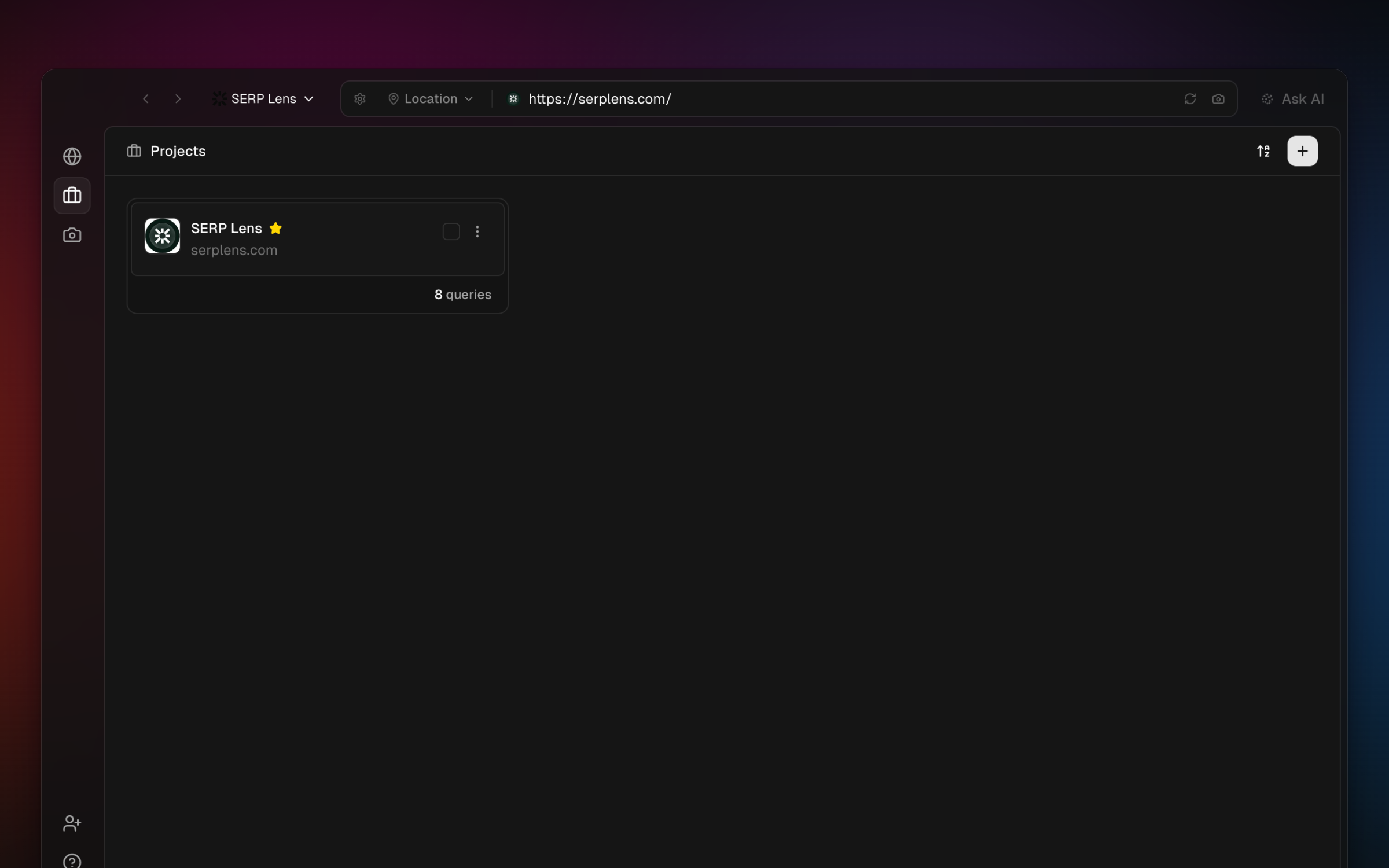
What's in a project
Each project has:
- Domain — the site or root domain associated with the project.
- Competitor domains — up to 10 competitor domains for ranking comparisons.
- Project goal (optional) — a description of what you're trying to achieve (e.g. "Improve rankings for 'gifting' queries").
- Keywords — tracked search terms with their rankings, devices, and locations.
- Screenshots — captured and annotated screenshots saved to this project.
- Project image — a custom image or auto-fetched favicon for easy identification.
Creating a project
Open the Projects view
Click Projects in the sidebar to see your team's projects.
Click New project
Click the New project button to open the creation form.
Fill in the details
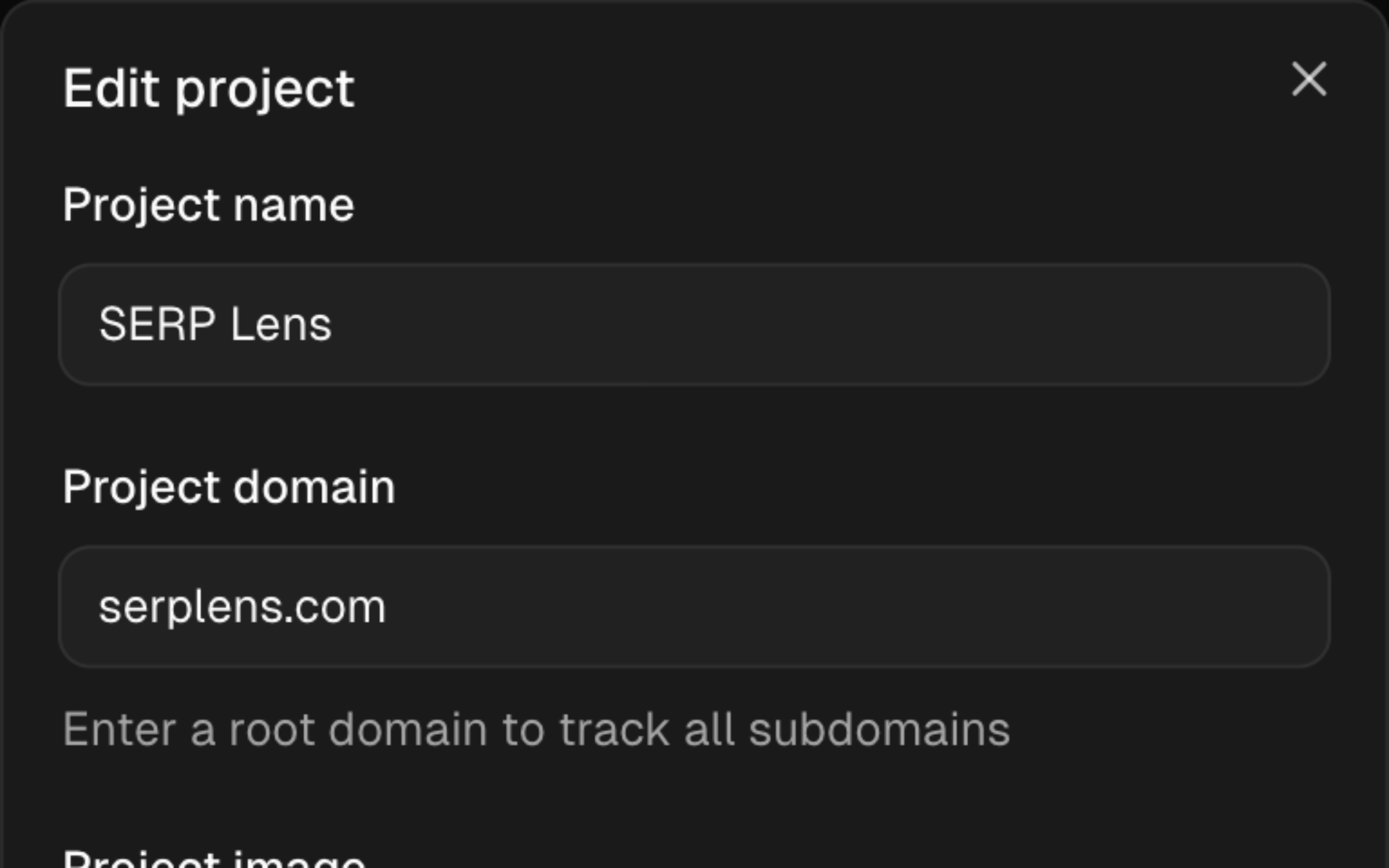
Enter a project name and root domain. You can also add a goal, up to 10 competitor domains, and a project image. Upload an image or click Fetch favicon to use the site's icon.
Save
Click Create to save the project. It appears in your project list immediately.
Managing projects
Editing a project
Open a project and click the settings icon to edit its name, domain, goal, competitors, or image.
Favorites
Star projects to pin them to the left sidebar for quick access from anywhere in the app. Favorites persist across sessions.
Sorting
Sort your project list by Name A–Z, Name Z–A, Latest, or Favourite.
Deleting projects
Open the project action and choose delete. Confirm the project name before SERP Lens removes it.
Deleting a project cannot be undone. All keywords, ranking history, and screenshots associated with the project are permanently removed.
Project limits
The project limit is set for the active team. When you reach it, delete an unused project or open billing to review the team's options.
Check the current project count and limit in Settings → Billing.