Omnibar and commands
Open URLs, search with different engines, revisit recent destinations, and run SERP Lens commands.
The omnibar combines address entry, search, suggestions, and engine commands. Press Cmd L on macOS or Ctrl L on Windows to focus it.
Open a URL or search
Enter a complete URL to open it. Enter other text to search with the selected search engine. Suggestions and recent destinations appear while you type.
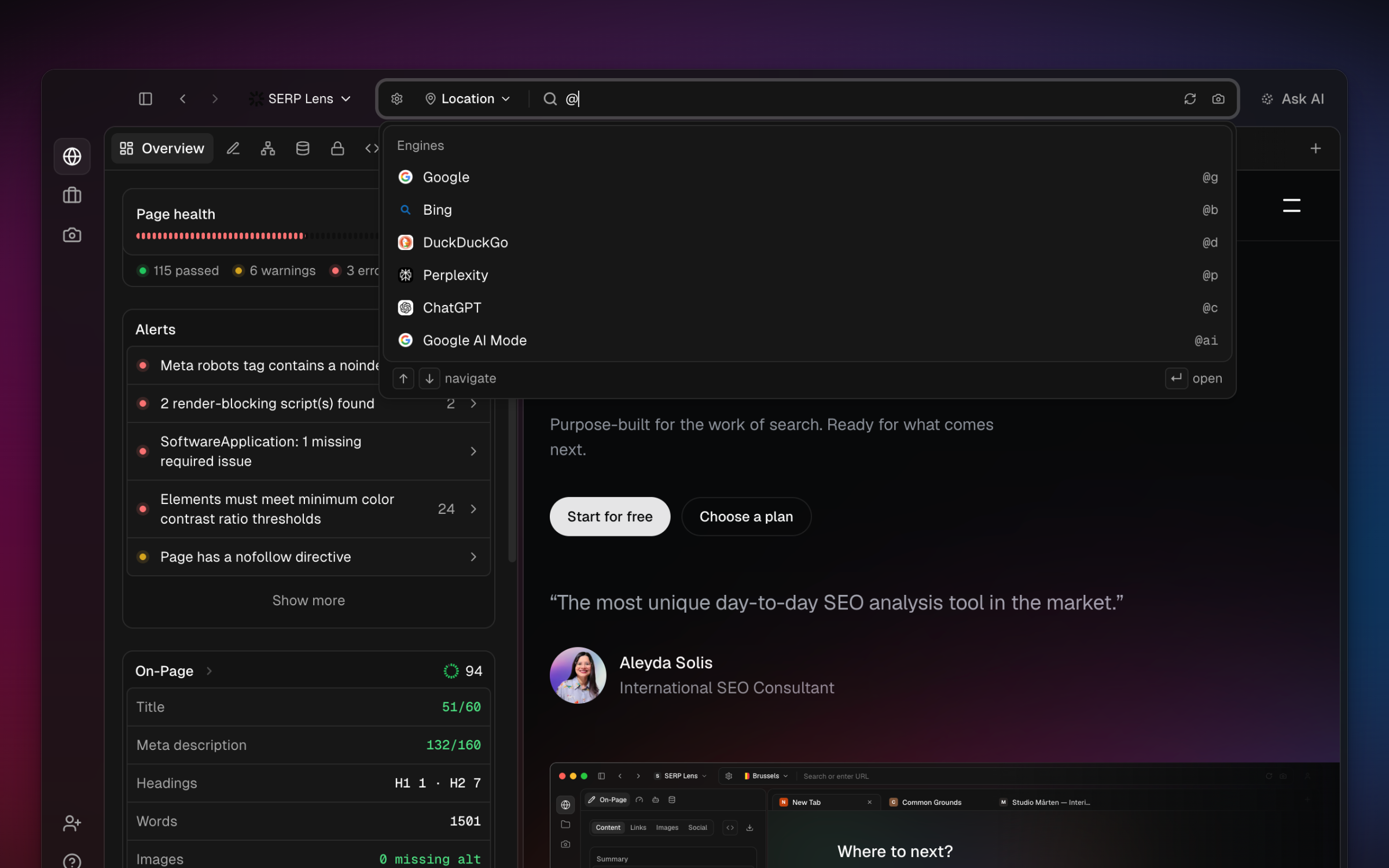
The engine control includes Google, Bing, and DuckDuckGo for web search. It also includes Perplexity, ChatGPT, and Google AI Mode as AI destinations. The search settings available beside the omnibar control Google-specific behavior such as domain, language, time range, and result count.
Engine commands
Type @ to see search-engine commands. Choose an engine, enter the query, then submit it. This changes the engine for that query without changing every future search.
The omnibar can also route a query to more than 1 engine. SERP Lens opens the resulting searches in separate tabs so you can compare them.
Open in another tab
The submission shortcut shown in the omnibar determines whether a destination replaces the active tab or opens in another tab. Use the displayed modifier hint because macOS and Windows use different modifier keys.
Command palette
Press Cmd K on macOS or Ctrl K on Windows anywhere in SERP Lens. Start typing to find commands, projects, saved screenshots, browser history, and open tabs. You can also enter a URL or search the web without returning to the omnibar.
Results change with the active screen and tab. Recent commands appear first when there is no search, and commands you use often rank higher in later searches.
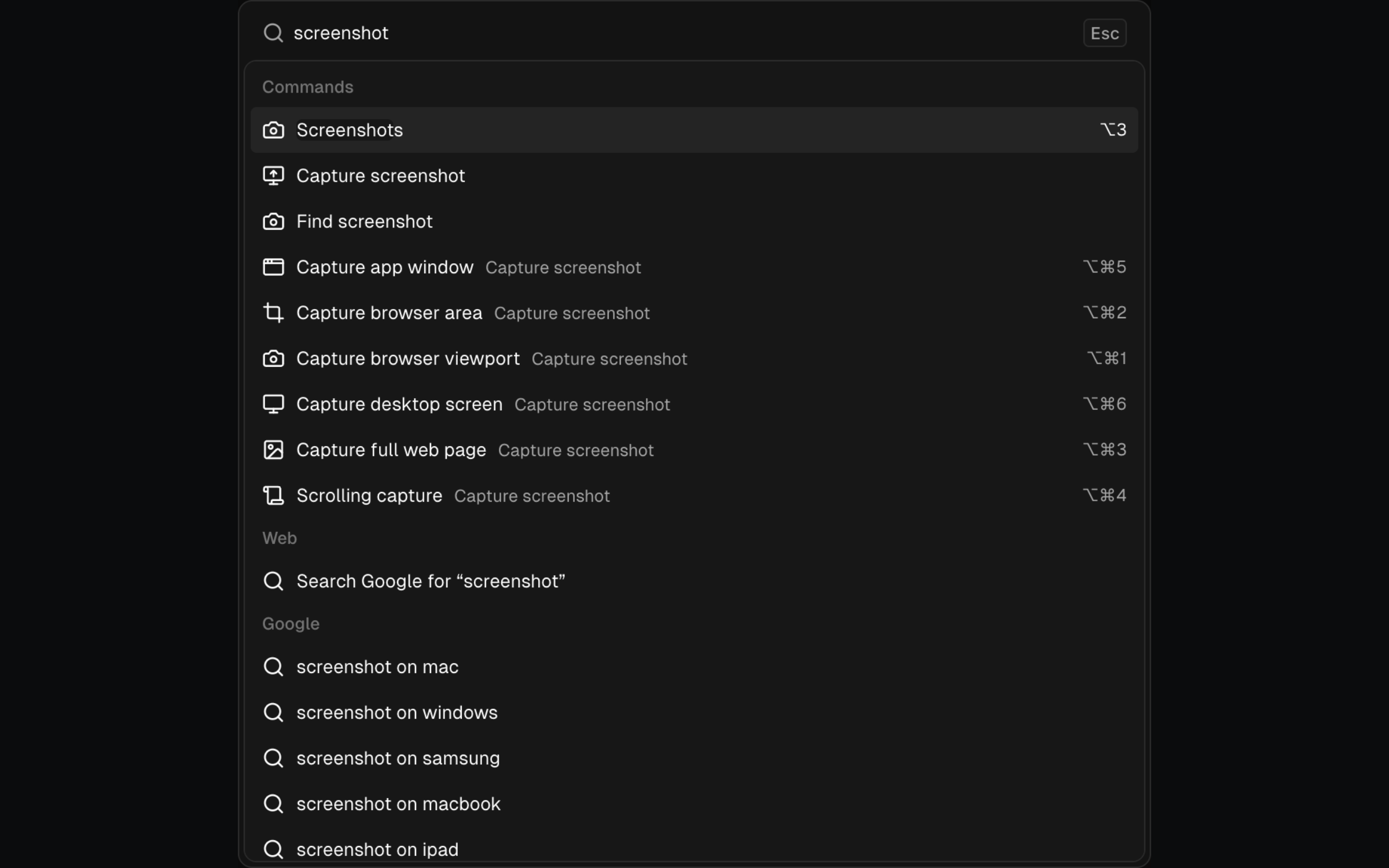
Page-aware actions
With a page open, the palette adds actions for that page:
| Group | What you can do |
|---|---|
| Suggested | Ask AI about the page or open a content panel. |
| Ask AI | Run page audits, rewrite title and meta text, create a content brief, suggest internal links, or check schema, rendering, and indexability. Google results pages also offer SERP analysis. |
| Page actions | Add the current domain to a new project. |
| Page tools | Capture a screenshot, open the page in another service, copy page data, or highlight elements. |
| Render & panels | Toggle JavaScript or CSS, change the user agent, inspect the HTTP trace, preview the SERP snippet, or open another content panel. |
Actions that need a browser page only appear when that context exists.
Tools inside the palette
| Tool | What it includes |
|---|---|
| Capture screenshots | Browser viewport, browser area, full page, scrolling page, app window, and desktop screen. |
| Open in | Ahrefs, Semrush, Moz, Majestic, Similarweb, PageSpeed Insights, the Wayback Machine, and structured-data validators. |
| Copy | URLs, domains, titles, headings, metadata, word counts, links, HTTP details, robots directives, canonical markup, and structured data. |
| Highlight | Internal links, external links, headings, and lazy-loaded images. |
| Browser setup | Device presets, network speeds, user agents, VPN locations, and content panels. |
Without a page open, the palette still provides navigation, projects, recent history, appearance and sidebar controls, VPN controls, and web search. Type at least 2 characters to search across the available sources.