Google Search Console
Connect Google Search Console and inspect matching performance and indexing data in the SERP Lens browser.
Google Search Console connects a team's verified properties to the GSC panel. The panel can match the active page to a property or let you choose one manually. Search Console integration is available on paid plans.
Connect an account
- Open Settings → Integrations.
- Select Google Search Console.
- Choose Connect with Google.
- Complete the Google authorization flow in your browser.
- Return to SERP Lens and confirm that the account and its properties appear.
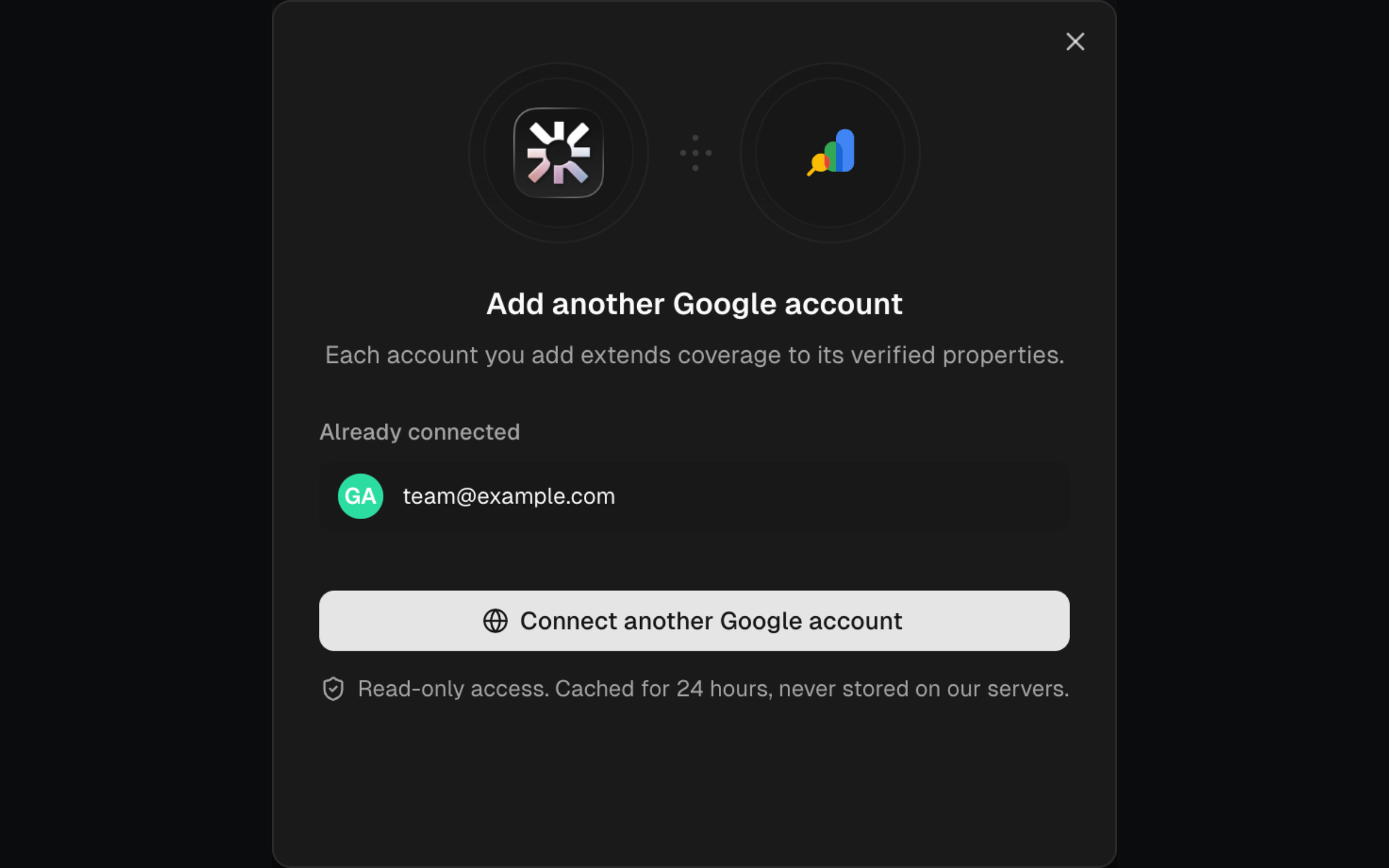
Add another Google account when the properties you need belong to a different account. If a token expires, use Reconnect with the same Google account.
The connection is read-only. SERP Lens caches results for 24 hours and does not store Search Console data on its servers.
Choose a property
Open a website in the SERP Lens browser, then select GSC in the content panel. Use the property source control to decide whether the panel follows your browsing or stays on one property.
| Mode | Behaviour |
|---|---|
| Current tab | Matches the active URL to a connected property and updates as you navigate. |
| Pinned property | Keeps the selected property fixed when you navigate or switch tabs. In Page scope, enter the exact page URL you want to inspect. |
Switching to Pinned property starts with the property and URL currently shown. Switching back to Current tab clears the pinned page and resumes matching the active tab.
Page and site scopes
| Scope | Data shown |
|---|---|
| Page | URL inspection summary and performance for the selected page |
| Site | Performance across the selected property |
The performance section includes metrics, a trend chart, dimension tables, date controls, and filters. Available dimensions change with the selected scope.
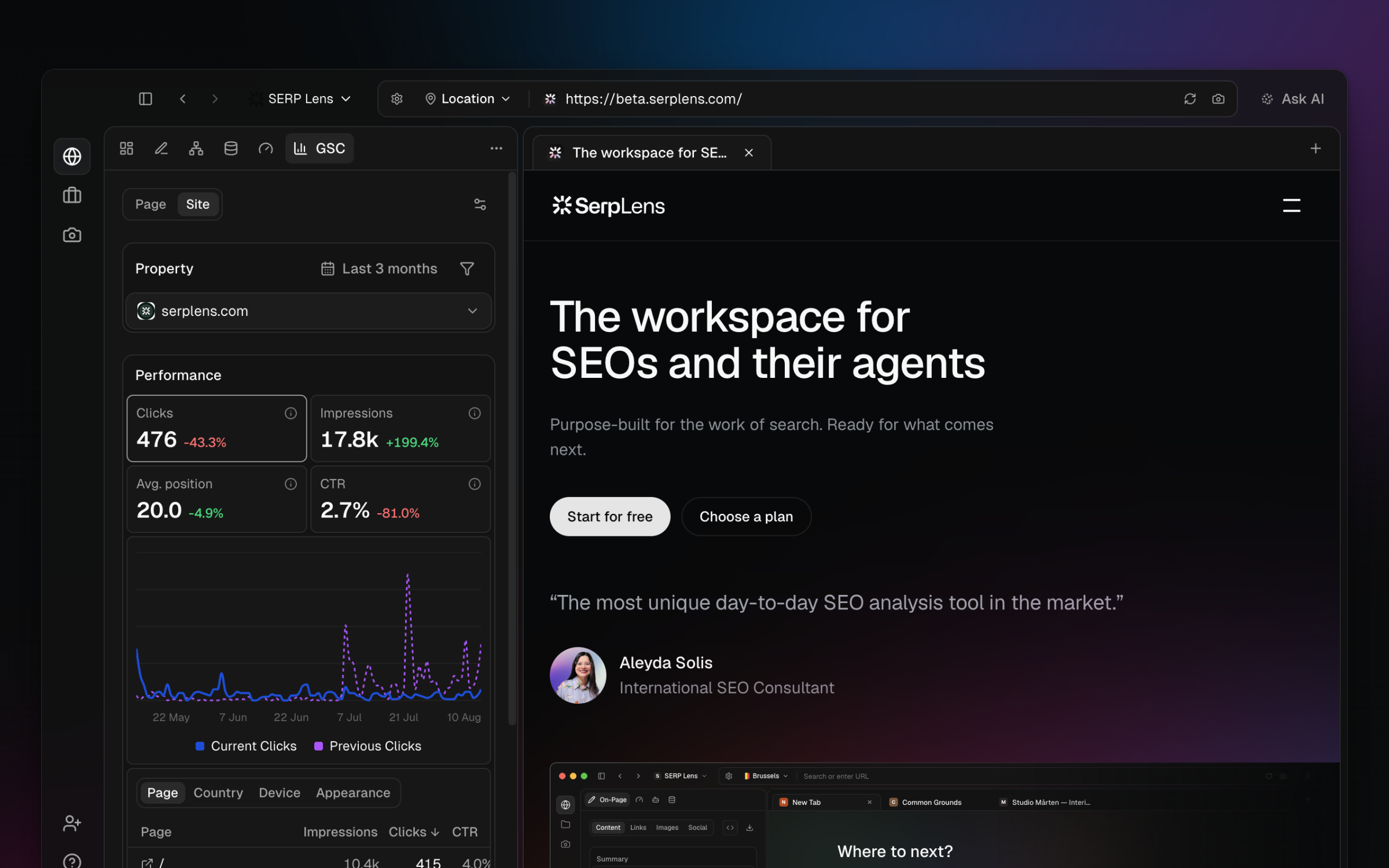
For page scope, run inspection when indexing details have not been loaded. The result can include index state, page fetch, indexing permission, sitemap, and referring-page information returned by Search Console.
Manage the connection
Return to Settings → Integrations to add, reconnect, revoke, or remove a Google account. Account management depends on your role and the team's integration policy.