Adding keywords
Add tracked keywords with locations, languages, devices, tags, and a refresh interval.
Open a project and choose Add keywords. The credit requirement updates as you configure the batch.
Enter keywords
Choose the entry mode shown in the form:
- Keywords — enter queries separated by commas or new lines.
- Keywords with tags — enter queries with their tag values using the format shown by the form.
Review parsed entries before continuing. Remove blank or unintended rows instead of spending credits on them.
Configure the batch
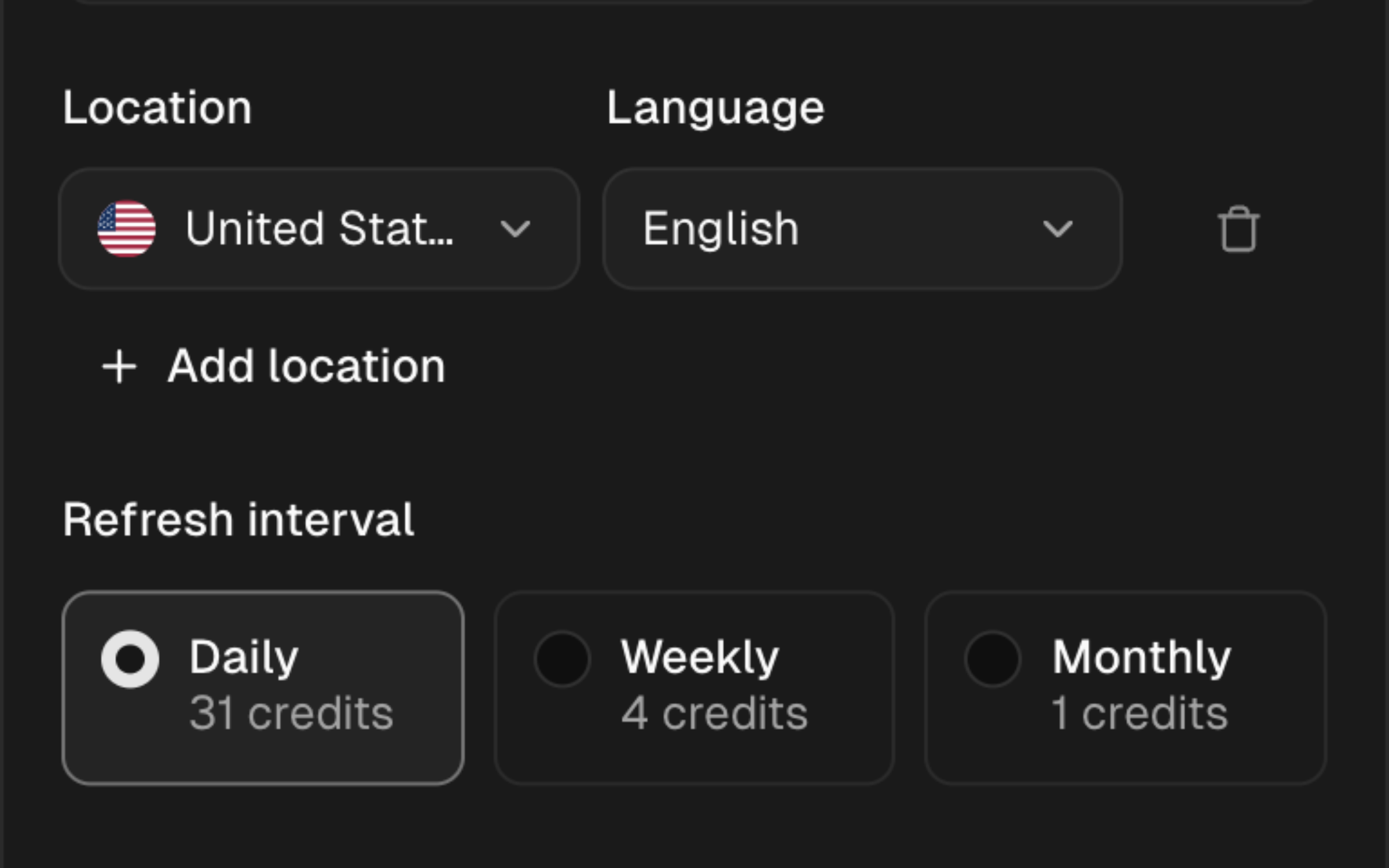
- Locations — choose 1 or more locations from the live catalog.
- Languages — choose the search language values offered for the selection.
- Device — choose desktop, mobile, or both.
- Refresh interval — choose 1 of the schedules shown in the form.
- Tags — create or attach project tags where the form offers them.
Every keyword in the batch uses the selected location, language, device, and refresh settings.
Confirm the cost
The form displays the required credits and the team's available balance. If the batch exceeds that balance, reduce the keywords or locations, choose 1 device, or select a less frequent interval.
Intervals, costs, and locations can change. Confirm the values shown in the form before saving the batch.
After adding
The new rows show their current tracking status. Data appears after the first check completes. Deleting a tracked keyword also removes its associated ranking history after confirmation.